When an Assistant Runs the Session: Assistant Access
You're away at a competition with the senior group. Meanwhile the junior group is being run by your assistant — a former student, a second coach, one of the more enthusiastic parents. The session itself goes fine. The trouble starts on Monday.
Who showed up on Thursday? "Everyone except Alina, I think — or was that Wednesday?" Dinara brought the money for the month, your assistant put it in a jacket pocket and genuinely forgot to mention it. Thursday simply isn't in the register. Two weeks later you're explaining to a parent why your records show a debt while they hold a receipt for a payment that doesn't exist.
Assistant access closes exactly that gap. Your assistant gets a login of their own — stripped down to a single job: run the session and mark who was there. Everything they mark lands in your account immediately, signed with their name rather than yours.
What the assistant sees
The assistant's account is four screens. Not a trimmed-down copy of your app, but a separate tool for one job: running a training session.
Home — today, and nothing else
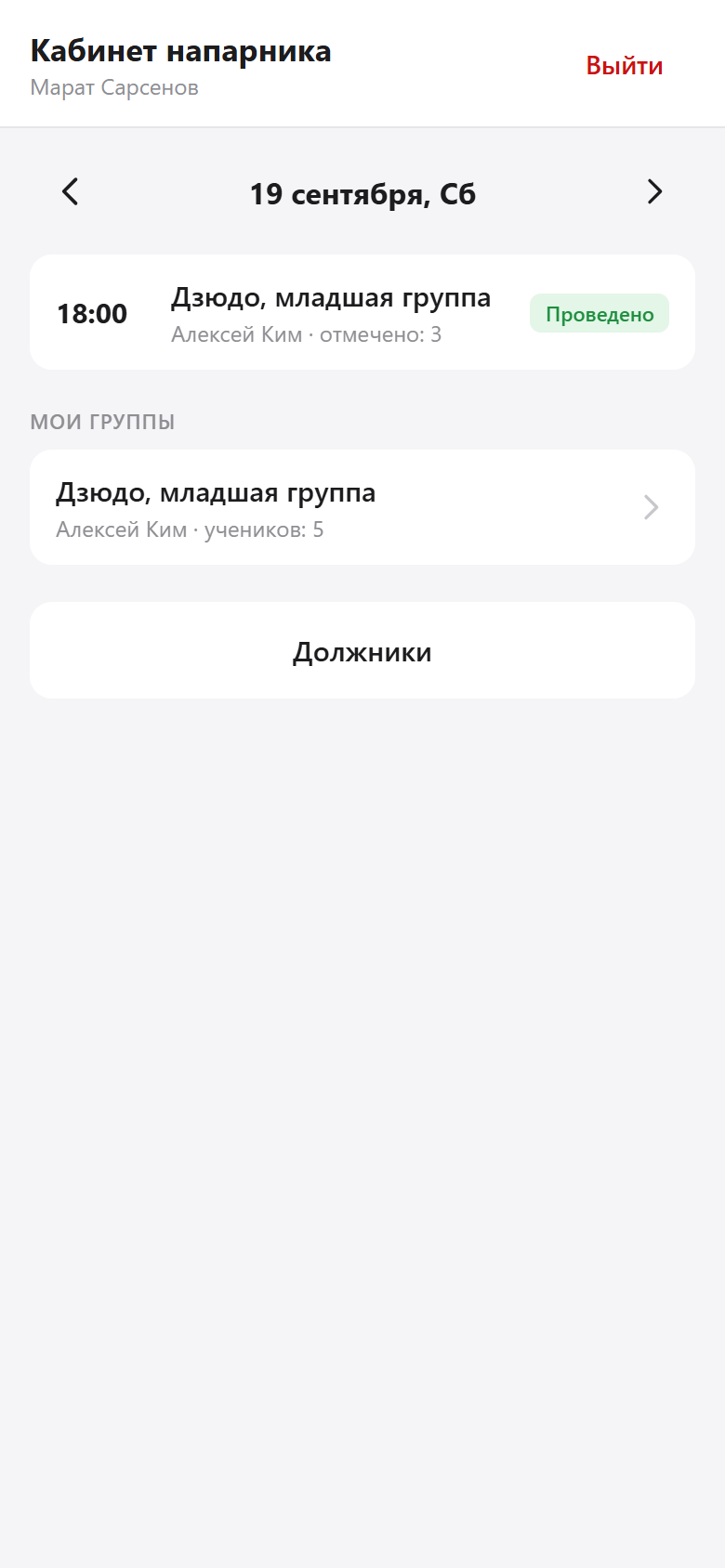
The assistant doesn't pick a group out of the club's full list or hunt for the right session in the schedule: they only see the groups where you entered their number. Other groups in the same club don't exist for them.
The session — three buttons per student
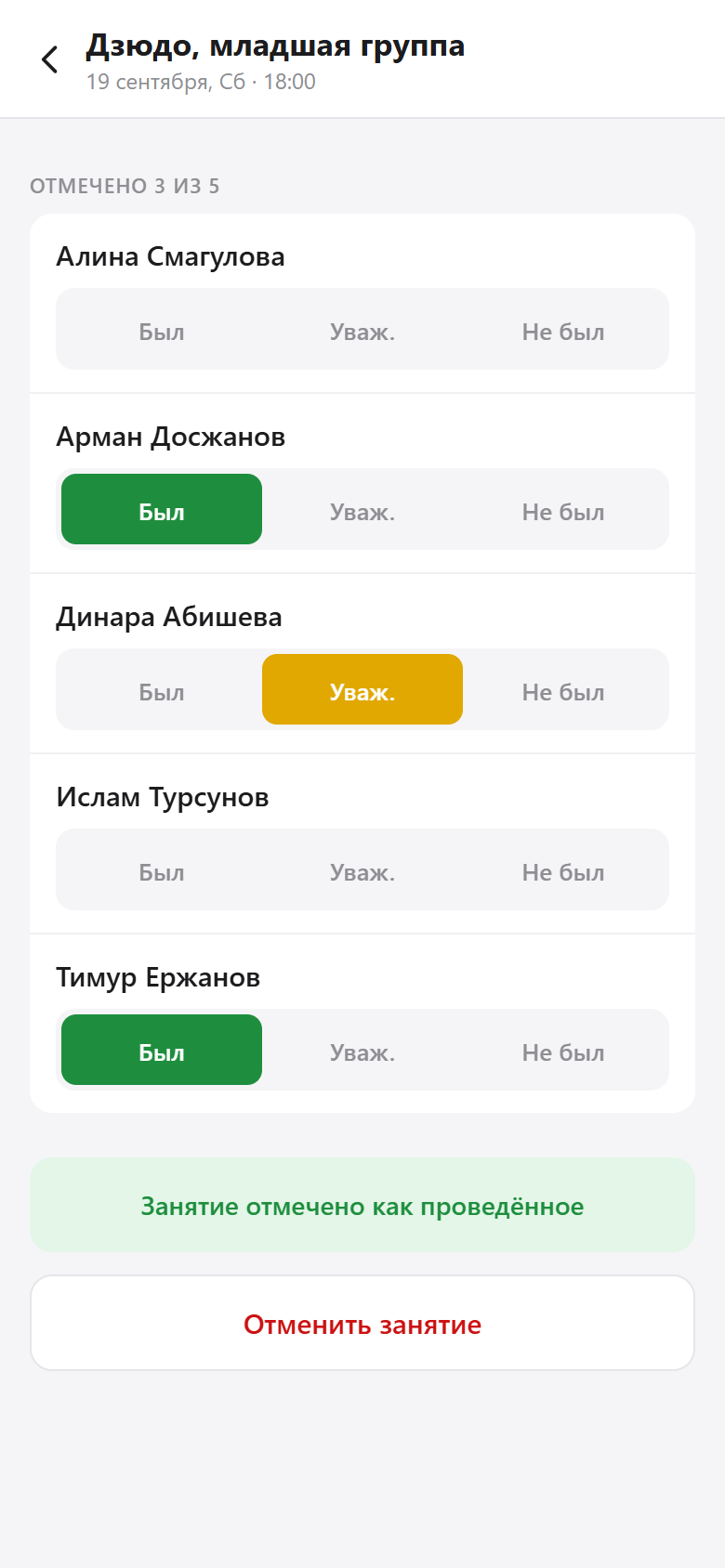
Two buttons sit at the bottom: Session held and Cancel session. The first is the very mark whose absence later breaks your statistics and your revenue forecast. The second is for when the gym is closed or too few students turn up: the session doesn't vanish from the history, it gets the status Cancelled.
The group and the student card — call instead of digging through chats
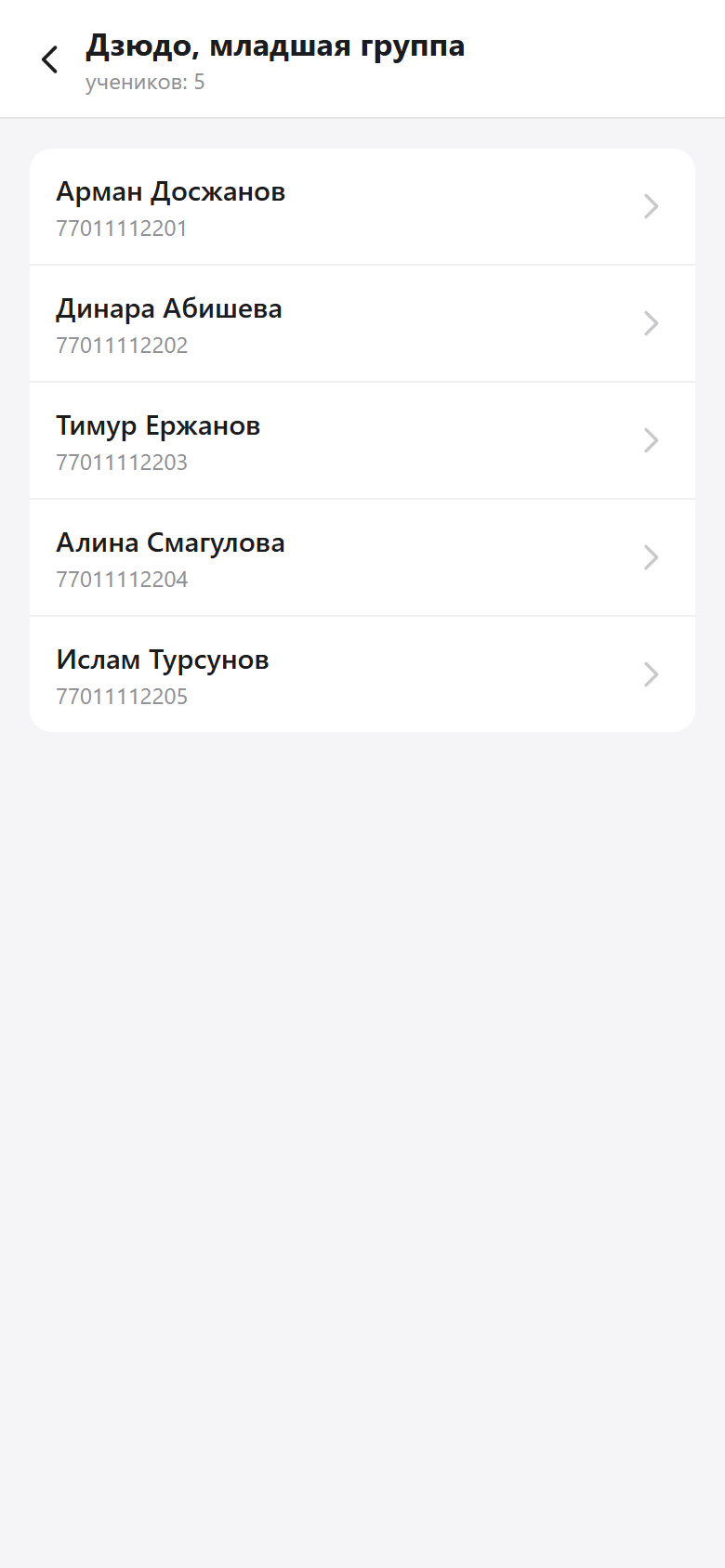
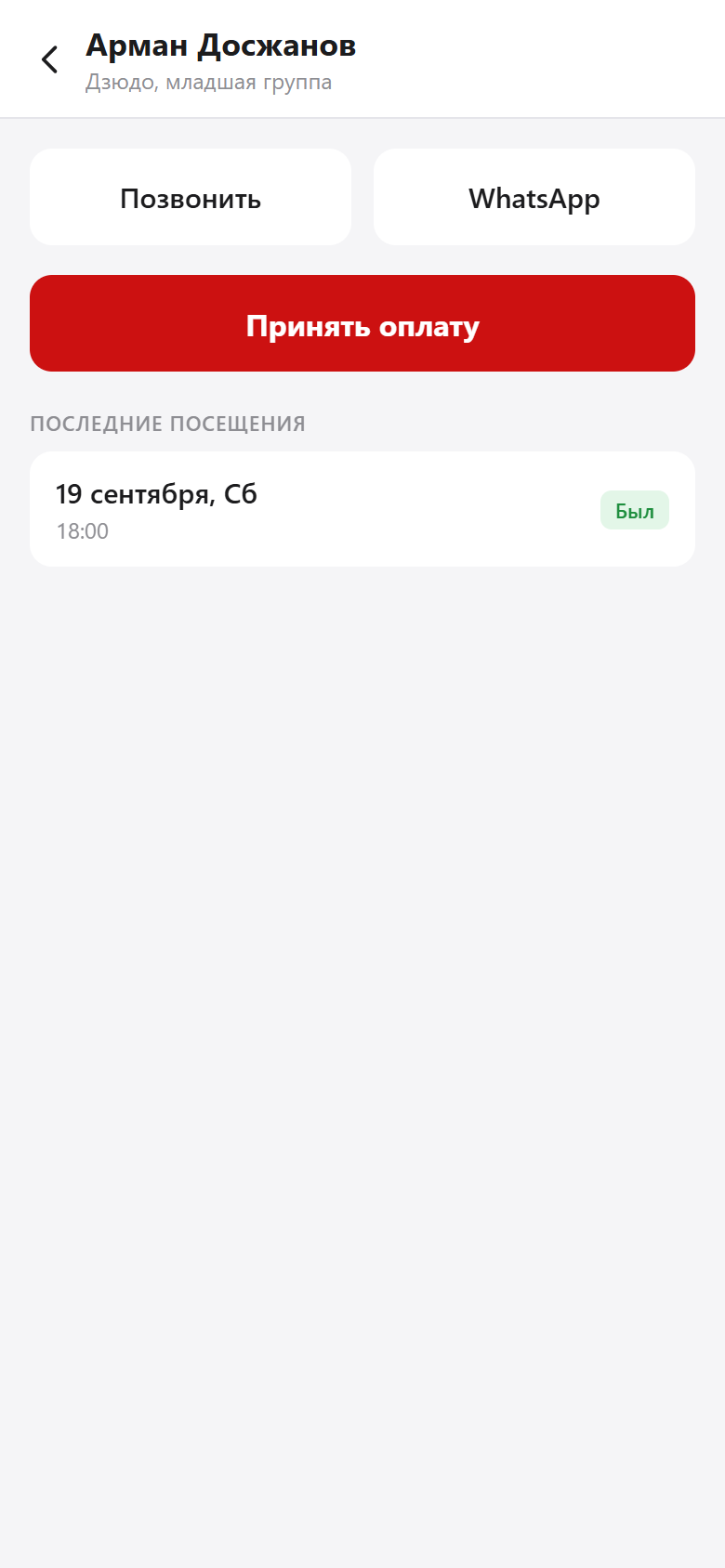
A child didn't turn up and the parent said nothing — the assistant calls straight from the card instead of messaging you for the number. Your own notes on the student stay private: what you write for yourself, the assistant never sees.
Debtors and cash payments

This is the only place where the assistant sees money, and they see exactly what the job in the gym requires: who owes and how much. A parent hands over cash after training — the assistant opens the student card, taps Take payment, enters the amount, the period or the number of sessions, and a comment. The payment shows up in your account the same second.
Club revenue, expenses, analytics, forecasts and your own subscription aren't in this account at all — not on a single screen.
What the assistant can't do
| Can't | Why |
|---|---|
| Create groups or students | The database is yours. The assistant works with the roster you maintain and doesn't add a duplicate "Arman D." next to "Arman Doszhanov" |
| See club finances | Revenue, expenses, analytics and billing aren't their responsibility |
| See other groups | Access comes from a phone number in a specific group, not from a job title |
| Work with one-on-one athletes | Personal programmes and templates stay in your own workspace |
| Write notes on a student | A coach's notes are visible to you only |
Who marked what
The first question about anyone else's mark is "was that me, or not?" In your account, the answer is the signature under every record the assistant made.
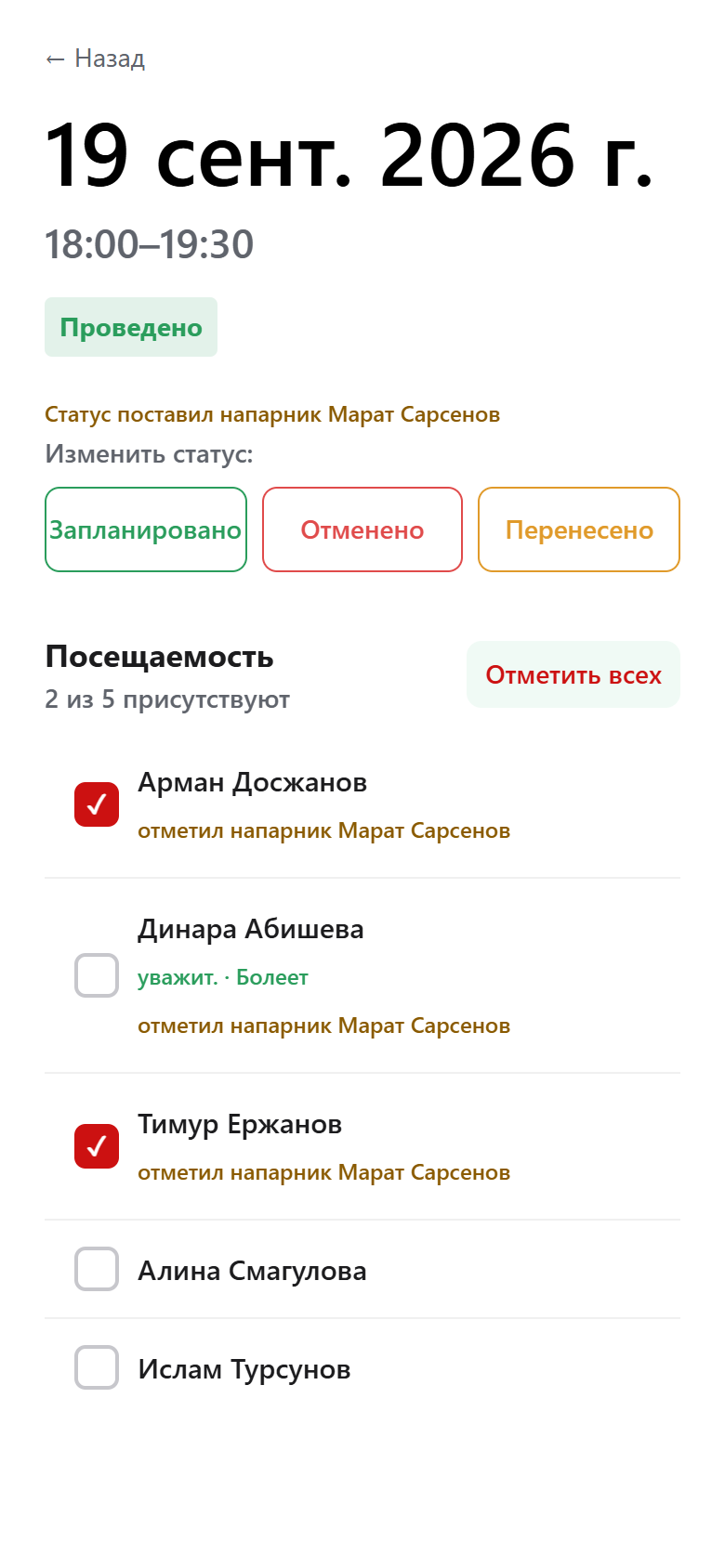
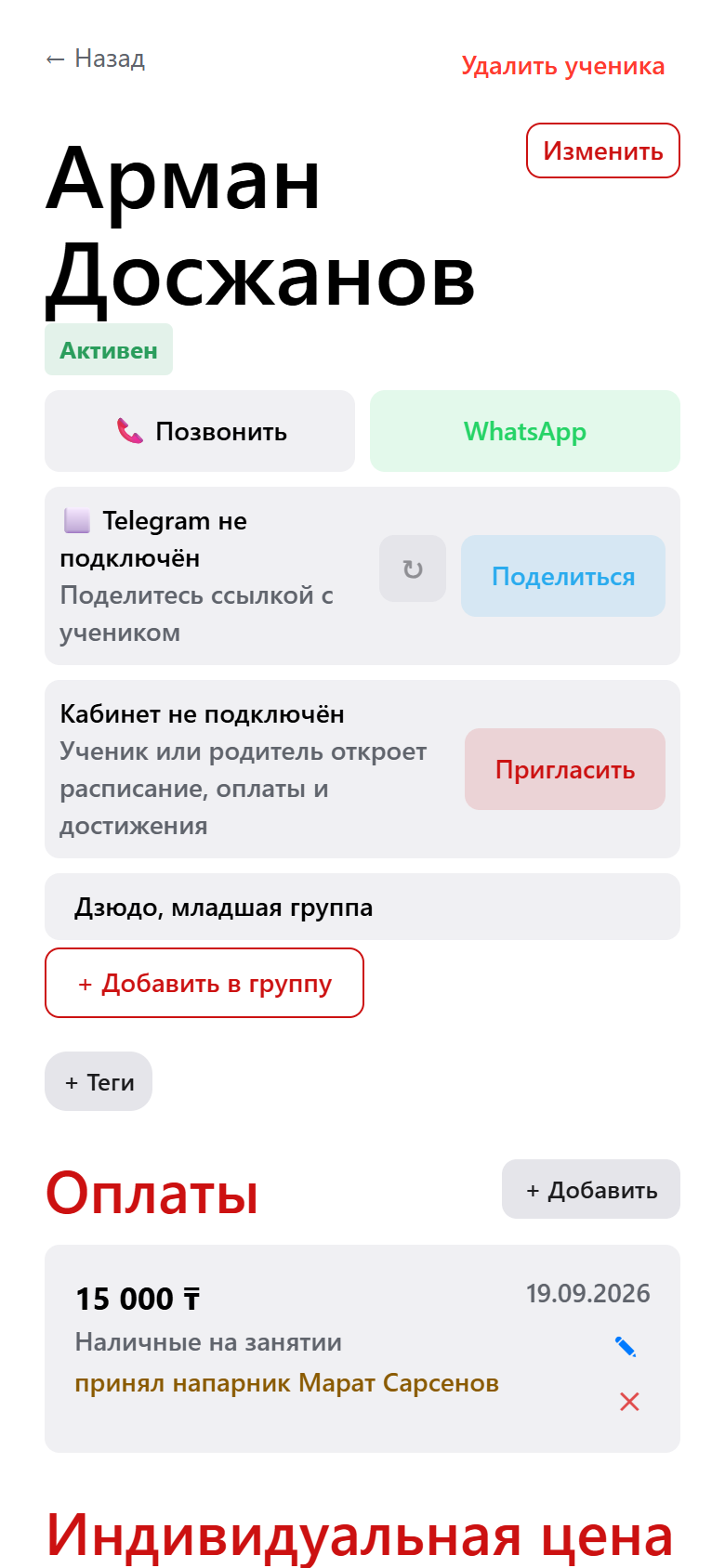
The logic behind the signature is simple: it shows whose mark stands now. Correct the attendance yourself and the signature disappears from that row, because the mark is now yours. Neighbouring rows you didn't touch keep theirs. On a payment the signature never comes off: a specific person took the money, and that fact isn't rewritten after the event.
In a gym with no internet
A basement, a semi-basement, a sports hall with concrete walls — half of all sessions happen where there's no signal. The assistant has the same offline queue you do.
Marks and payments are saved on the phone, and a line appears at the top: "Not sent to the server: 5", with a Send button. When the internet comes back, the data goes out by itself. Nothing has to be re-entered from memory in the car park where the signal works.
Setting it up in a minute
- Open the group → Edit group → in the Group coach block, enter the assistant's name and phone number. That's the same number they'll log in with. As a bonus, students will see their contact details in the app instead of yours.
- Go back to the group screen and tap Invite in the Assistant access block.
- A window opens with a QR code and a link. If the assistant is standing next to you, let them point their camera at the QR code; if they're in another city, send the link: Share on a phone, Copy link in a browser.
- They open the link, confirm the number, enter their name and choose a password — at least 6 characters. After that they log in at app.trainerpad.asia/assistant/login.
The link is valid for 7 days, and only the most recent one issued is ever active. One invitation covers every group: if the assistant runs three of your groups, enter their number in each one and all three will appear in their account. You can't invite yourself — the app will tell you that you already have full access.
The assistant changed, or forgot the password
- Forgot the password. Tap New link in the "Assistant access" block — the same QR code and link open, and the assistant sets a new password through them. Every mark and payment stays where it is. On the login screen the assistant sees a "Forgot your password?" hint with the request text ready to send to you.
- No longer runs this group. Remove their number from the group settings and the group disappears from their account. Remove it from every group and they'll see "Access closed" at login. There's no separate "revoke" button: the access is the number in the settings.
- Helps more than one coach. The same person can be an assistant to several coaches — groups from different clubs appear in one list, each labelled with the club it belongs to. It's still one account, with no second password to invent.
The plan
Assistant access is part of the Club plan — a feature for clubs where the coach is no longer working alone. The trial period doesn't unlock it. If a Club subscription expires, the assistant sees "Access closed" at login, and everything they marked previously stays in your database.
A checklist for the first session
- Enter the assistant's number in every group they run, and send the invitation.
- Ask them to open the link and log in before the session, not a minute before the whistle.
- Show them once: mark three students, tap "Session held".
- Agree on cash: money taken means money logged in the app right away, while the parent is still there.
- After their first solo session, open that session in your own account and look at the signatures — you'll see straight away what came through and what didn't.
After that it runs itself: the assistant takes the session, and in your own account you see live attendance and live money — down to who exactly took it.
Try Trainer Pad for free
Student records, attendance, payments and an account for your assistant — from your phone, and it works without internet.
Open the app